Checking Website Up Status using PowerShell

Overview

This script can be used to query a list of sites and produce an HTML report of their status. I created this script in order to get a report of SharePoint sites that my team manage without having to check the site one by one to see if they are up or not.

Download

https://github.com/junecastillote/Get-WebUpStatus

How to use

Modify the configuration file


  • enableDebug (1 = ON, blank = OFF)
    • Enable or disable the transcript logging
  • sendEmail (1 = ON, blank = OFF)
    • Enable of disable sending of the report via email
  • alertsOnly (1 = ON, blank = OFF)
    • Indicates whether the report will only be sent if there are errors
  • mailFrom
    • mail sender address
  • mailTo
    • mail recipient addresses. multiple addresses can be separated by comma
  • mailServerName
    • IP address, hostname or FQDN of the smtp relay server
  • mailServerPort
    • SMTP server port to use. Normally this does not need changing, unless your SMTP server is listening on a different port.
  • sitesListFile
    • this indicates the location of the text file containing the list of sites to query

Run the script

Syntax: .\Get-WebUpStatus.ps1 -configFile


Output

The HTML file report will be created inside the same folder where the script is located


And if the sendEmail parameter is turned on, the same HTML content will be sent via email


Use as Scheduled Task

If you plan to use the script with Task Scheduler, here's a sample reference.


Program/script: 
powershell
Arguments: 
-command C:\Get-WebUpStatus\Get-WebUpStatus.ps1 -configFile C:\Get-WebUpStatus\config.xml

End of Post

Please report issues in the Github repository.

Share:

Monitor Azure AD LastDirSyncTime Using PowerShell

Office365Logo_256x254pxKnowing if your Directory Sync is up to date (or not) is crucial. Yes, you can glue your eyes to the Office 365 Portal or use commercial 3rd party monitoring tools to be alerted when your Directory Sync hasn’t updated for a certain period, or you can achieve the same goal using PowerShell. Microsoft was kind enough to include a LastDirSyncTime value when you run the Get-MsolCompanyInformation cmdlet. This way it can be programmatically checked and monitored by scheduling a script to run via task at an interval.

This script queries the LastDirSyncTime value, gets the current time, calculates the elapsed time, compares the difference against a set threshold and send an email alert if the threshold is breached.

Download Link

https://github.com/junecastillote/Get-O365DirSyncElapsed

  • 1.0 - April 19, 2018
    • Initial Release
  • 1.1 – August 20, 2018
    • Changed Time Stamp from UTC to Local Time, including the Time Zone ID
    • Required PowerShell v5.1


Requirements

  • PowerShell v5.1 (as of script v1.1)
  • MSOnline Module

Having the MSOnline Module installed is required for this to work. If you have PowerShell 5, it is easy to install. Just run Install-Package MSOnline and it should get you started. However for lower PS versions it may take a bit more to get MSOnline Module installed.

You can read up on MSOnline in detail from by following this link: Azure ActiveDirectory (MSOnline)

How To Use

Export Login Credentials to XML

The Username and Password are not saved inside the script, but rather it will import the login information from an encrypted XML file that you need to create beforehand.

Run this line in PowerShell, and it should save the credentials in an XML file.

Get-Credential | Export-CliXml ExOnlineStoredCredential.xml

Below is the sample content of the exported credentials.

Variables

Some variables that need to be modified depending on your requirement. The below example assumes that you are also using Exchange Online as relay. If you prefer to use a different SMTP relay, you will need to manually modify the script to conform with that.

In this example, only the following variables need to be modified.

$dirSyncElapsedTimeThreshold: The threshold in hours. If this is breached, the email alert will be sent.

$toAddress : The email addresses (separate with comma if more than one) of the intended recipients of the email alert.

$mailSubject: Your choice of message subject when the alert is sent.


Output

Once it’s all set up, just run the script from PowerShell. In the example below I set the threshold to ZERO (0) hours to trigger the alert. You should set a more realistic threshold in your production, obviously.

Then the email alert similar to this should be received.

Share:

Recursive Mailbox Full Permission Report Using PowerShell


exchangeMailbox Permissions may include Users and Groups, and sometimes even nested groups. And if you were tasked to get a report listing all those permissions, it would be a very tedious process to manually look up each entry. This script can help generate the needed report based on a file with a list of mailboxes are input file, all mailboxes, or just a single mailbox.


The Script

Variables

Variables

Depending on what your requirements are, you can change the value of the variable $mailboxList. The descriptions are already stated after each option.

Input File for Option 1

Should you choose OPTION 1, which is to use an input file named mailboxlist.txt, the file must first exist and contain the list of the acceptable identity values like SamAccountName, PrimarySMTPAddress, Alias or UserPrincipalName to name a new.

The example below shows the file containing the PrimarySMTPAddress values.

Running the Script and the Outputs

Running the script requires no parameters. All you need to do is run it in your normal PowerShell session (not EMS or Remote Shell).

On Screen

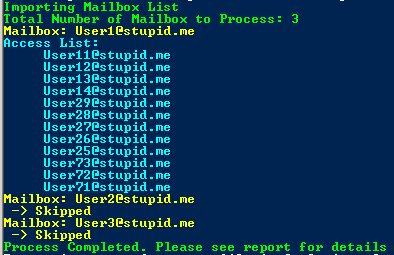
The screen output shows which mailboxes are currently being processed. Each permission will be listed below the current mailbox, and the mailbox with no permissions found will be skipped.

Debug Log

The Debug Log is just a transcript of what was displayed on the screen. The filename format is DD-MMM-YYYY_HH-MM-TT_debuglog.txt and is saved in the same folder as the script itself.

CSV Report

A report in CSV format is exported and saved in the same folder as the script itself. It will always be named “report.csv” and will be overwritten each time the script is executed successfully.

CSV Report Fields

  • MailboxName
    • Name of the mailbox
  • MailboxEmailAddress
    • Email address of the mailbox
  • WhoHasAccessName
    • Name of the user who has access to the mailbox
  • WhoHasAccessEmailAddress
    • Email address of the user who has access to the mailbox
  • AccessType
    • DirectUser – means that the user has direct access permission applied to the mailbox
    • InheritedFromGroup – means that the user has permission because the user is a member of a group that has access to the mailbox
  • ParentGroupName
    • Name of the group that has access to the mailbox
  • ParentGroupEmailAddress
    • Email Address of the group that has access to the mailbox


Download Link

https://github.com/junecastillote/Get-RecursiveFullPermission

Share:

How to Find the Lync/SfB Federation SIP Address of a Domain

Being the Lync / SfB Administrator of your company, you may at times need to look up the Federation SIP Address of another domain. It may happen that a federated partner domain decided to change their SIP Address or perhaps they've migrated their Lync On-Premise infrastructure to O365/Skype Online, and you need to update your own Lync organization with that new SIP Address.
Federation utilizes the SRV DNS record with a specific format, and for this, you can use the good old nslookup utility.

In this example, we are looking for the Federation SIP Address for microsoft.com. The result is sipfed,microsoft.com

C:\>nslookup
> set q=srv
> _sipfederationtls._tcp.microsoft.com
DNS request timed out.
    timeout was 2 seconds.
Non-authoritative answer:
_sipfederationtls._tcp.microsoft.com    SRV service location:
          priority       = 0
          weight         = 0
          port           = 5061
          svr hostname   = sipfed.microsoft.com
>

Looking at the example, the federation sip address always starts with _sipfederationtls._tcp. and followed by the actual domain.

eg.
_sipfederationtls._tcp.amazon.com
_sipfederationtls._tcp.contoso.com

References:
https://technet.microsoft.com/en-us/library/jj618369(v=ocs.15).aspx
http://windowsitpro.com/skype-business/understanding-main-types-federation-skype-and-lync-environments
https://www.petri.com/setup-lync-federation
Share:

Lync Server: Windows Fabric Logs, Disk Space Usage and Circular Logging


If you're not interested in reading the entire post, you can skip to the solution.

I know there have been many articles written and available for this topic. The reason I decided to still write this is to provide more explanation to possible questions that I found myself asking too when I first encountered this situation.

To understand what Windows Fabric is, what is does and how it works you may refer to this link -
"Understanding how Windows Fabric Works (with regards to Lync)"

There are two (2) User Defined Collector sets by default when a Lync Front-End server is deployed.
  • FabricLeaseLayerTraces
  • FabricTraces
You can find these in Performance Monitor


And the default location of the files generated by these data collectors is in C:\ProgramData\Windows Fabric\Fabric\log\Traces folder of each Front-End server.


The screenshot above is from one of the FE Servers in my lab setup. As you can see there are multiple files with approximately 128MB size each. What happens is that once the log file reached a new log file is generated with an incremental version.

eg.
fabric_traces_130374156934210426_007625.etl
fabric_traces_130374156934210426_007626.etl

And there is no limit as to how many of these files are created and can ultimately use up all available free space.

So the questions:

Why the 128MB Maximum file size?

It can be any size really, it's just that 128MB is the default when the data collector was created. You can simply check this using the logman utility.


What triggers the data collector to start?

A Task is scheduled to run at system startup which calls the "StartTracing.cmd" batch file.


Where can I find StartTracing.cmd and how is Task Scheduler able to call it when there is no relative path indicated in the Task?

A relative path (eg. C:\Windows\etc\whatever.exe) is not necessary because the file StartTracing.cmd is located in a path that is already defined in the Environment Variables.


Think of notepad for example which you can run by just typing notepad.exe without having to specify the path - that is the same concept.

How do I stop Windows Fabric from generating multiple log trace files?

The short answer is to turn on Circular Logging.

How? According to this article - http://flinchbot.com/2014/02/28/the-hidden-logs-that-could-crash-your-lync-servers/ - you can turn on circular logging by running this command (from an elevated command prompt)
Logman update trace FabricLeaseLayerTraces -f bincirc --cnf
I did use that article as a guide to enable the Circular Logging for both collectors, but somehow logman still kept on generating new files. I'm not saying that it is wrong, only that some parameters were not included to achieve my intended outcome.

So why didn't it work? That is because despite circular logging being turned on, the versioning is still enabled and the overwrite switch was not specified. In order to really turn on Circular Logging and keep the number of files to 1, this is what I did:

Solution
  • Run these commands in an elevated command prompt:
Logman update trace FabricLeaseLayerTraces -f bincirc --v --cnf -ow
Logman update trace FabricTraces -f bincirc --v --cnf -ow
What do the switches mean?

-f bincrc = turn on circular logging
--v = turn off file versioning
--cnf = turn off creation of new files
-ow = turn on overwrite of existing log file
  • Temporarily stop the logging
logman stop fabricleaselayertraces
logman stop fabrictraces
  • (Optional) Delete the existing log files 
del "C:\ProgramData\Windows Fabric\Fabric\log\Traces\*.*"
  • Start logging
logman start fabricleaselayertraces
logman start fabrictraces
The Result?

Notice that the versioning has been removed.


The same log files will be overwritten every time.

Also, you may want to consider increasing the maximum file size to a much higher value (like 2GB or higher) since there will only one log file for each data collector.
logman update fabrictraces -max 2048
logman update fabricleaselayertraces -max 2048
References:

https://technet.microsoft.com/en-us/library/bb490956.aspx
http://masteringlync.com/2013/10/29/understanding-how-windows-fabric-works/
http://flinchbot.com/2014/02/28/the-hidden-logs-that-could-crash-your-lync-servers/
https://social.technet.microsoft.com/wiki/contents/articles/29408.out-of-disk-space-in-lync-server-2013.aspx


Share:

Delete Files Based on Age using PowerShell

UPDATE: This script has been discontinued. The new version of the script is published here - 
PowerShell Script to Delete Files By Age with Email Summary Report

Share:

IIS SMTP Server Status Check using PowerShell

This script can be used to check and report the status of the Smtp Service and the Virtual SMTP Server created in IIS. For use with Windows 2008+


Sample Report Output


----------------------------

Download 

You can download the script from here:


  • Version 1.1 (GitHub)
    • Removed Local Queue Counter
    • Removed Remote Queue Counter
    • Added Queue, Pickup, Drop and BadMail counter
    • Fixed some formatting issues
    • Replaced CSS Color theme (if you prefer the old theme, just copy the $css_string variable from the older version.
    • Some code optimization
  • Version 1.0 (GitHub)
    • Initial version

To run, no parameters required, just execute the script from PowerShell.


The Variables

Make sure to edit the following variables to conform to your environment or requirements


Share:

IMCEAEX to X500 Converter Tool

Tool to convert IMCEAEX String (from NDR) to valid X500 String.

Link: DOWNLOAD


Screenshot:


Share:

Office 365 Service Health Check [.NET]

Tool Overview

The AlertO365 Tool provides a mechanism to check the Office 365 Service Status and Events programmatically eliminating the need to logon to the Office 365 Portal manually. This tool utilize the “Office 365 Service Communications API” as provided by Microsoft.

Reference: https://msdn.microsoft.com/en-us/library/office/dn776043.aspx

The Package

Files and Folders

Name
Type
Description
AlertO365.exe
File
Main executable (no parameter required)
AlertO365.exe.config
File
Contain configuration values used by the tool (XML format)
microsoft.exchange.servicestatus.tenantcommunications.data.dll
File
Office 365 Communications API
report
Folder
First Sub-Folder
Contains the HTML reports
images
Folder
Sub-Folder of the Report Folder
Logo1.png
File
First Logo in the report
Logo2.png
File
Second Logo in the report

Install and Configure

Installation
To use this tool, no special install utility is needed. Just extract/copy the package to any location on the computer/server.

In this example, the tool is extracted and placed under the C:\ drive

Image 1. Folder Structure

Configuration

The configuration file is AlertO365.exe.config, this is in XML format and can be edited using a normal text editor like Notepad.

Image 2. AlertO365.exe.config contents


Fields and Values

ServiceURL – No need to change this. This is a constant value provided by Microsoft in their API documentation

DomainNames – The Tenant Domain to be checked (enter only one domain)

UserName – Username used to authenticate to the Tenant Domain

Password – Password for the Tenant Domain credential

IsAOBO – No need to change this. The function related to this value is not (yet) implemented.

PastDays – Number of days with which the tool would query events for (i.e 1 for the past 1 day)

SenderAddress – Sender address of the email report

RecipientAddress – Recipient addresses of the email report. Separate with comma (,) for multiple recipients

SMTPServer – IP address or resolvable name of the SMTP relay used for sending the email report

MailSubject – The String to be used as Message Subject and Report Title

Company – The company or domain name that will appear in the report

SendViaEmail – Yes or No indicates whether the HTML output will be sent via email or not.

Other Configuration Items

The package contains two images namely Logo1.png and Logo2.png. These images are located under “\report\images” folder. Upon creation of the report, these images will be embedded in the email representing the Client/Company we managed and HP. Before putting the tool in production use, make sure to replace the Logo1.png file with the appropriate logo image for the client/company being managed.


Sample Report

Image 3. Sample HTML Report via Email

How to Use

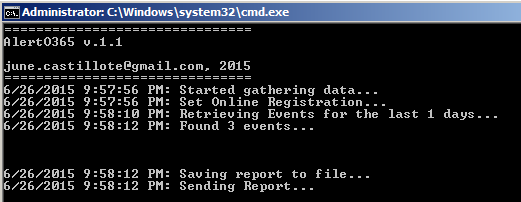
This is a console-only application which is best executed using the command shell (or can also be double-click in explorer – not recommended).


Can also be executed by Scheduled Task if preferred to run at certain interval (Daily, Hourly, Monthly..)


Image 4. Sample Tool Execution


Download and Source Code

AlertO365 1.2 - https://github.com/junecastillote/AlertO365

Note: Download contains source code. If you want to just get the binary output and associated files listed in "Files and Folders" section above, just go to the "bin/Release" folder.


Share:

Backup All Distribution Groups and Members using PowerShell

Someone in the group – either an admin or service desk,  may commit a mistake at some point and delete a distribution group or empty out the members' list. When that happens usually the recovery action is to restore a backup of the active directory. This script can be used to create brick-level backup of distribution groups, so that they can be restored individually.

Download

https://github.com/junecastillote/Export-GroupsAndMembers

Variables

Modify the variables as needed

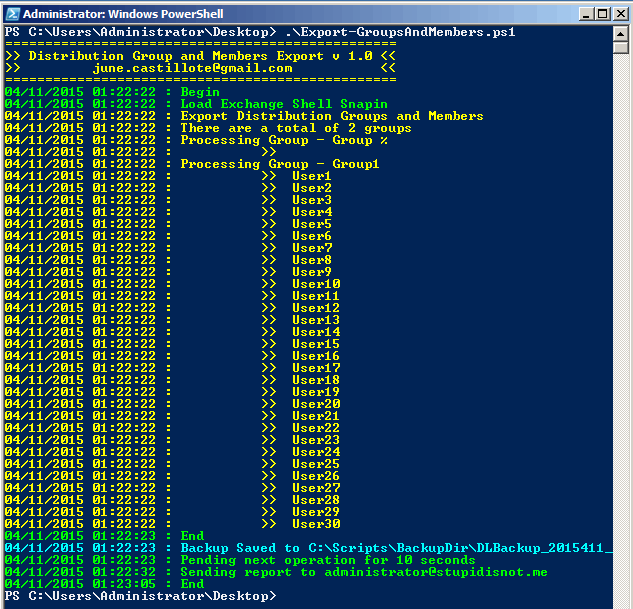
Sample Output

Running the script

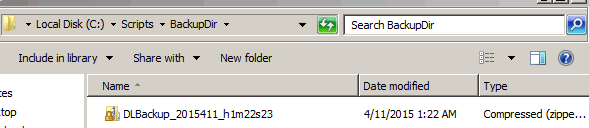
Backup File

Sample Data

Share:

Popular Posts

Powered by Blogger.