Showing posts with label Report. Show all posts

Office 365 Mailbox Forwarding Rules Report using PowerShell

Being on top of who’s forwarding messages to who’s email, especially those being forwarded to external domains is essential to email security for administrators. Phishing attacks can leave your users’ mailboxes prone to data exfiltration by way of forwarding emails, and so being able to regularly review and audit mailbox forwarding rules is beneficial to protecting your company’s data.
This script can be used to export a report of all the forward/redirect rules present in all user mailboxes.

Download Link

https://github.com/junecastillote/Export-ExoMailForwardRules


Requirements

  • Must have an Office 365 account that is assigned at least an Exchange Administrator role whose credentials will be used to connect to Office 365 PowerShell.
    • It is important that the account is not MFA enabled as the script operates by paging and re-authenticates to Office 365 page.
  • Must have a mailbox to be able to send the email report using Office 365 SMTP Relay. This could be the Service Account you’re using for the session, or a Shared Mailbox that the Service Account has Send As permission to. If you do not plan to send the report thru email, then you can disregard this requirement.


How to use

Setup Office 365 Credentials

  • Open PowerShell and change to the directory where the script is saved (eg. C:\Scripts\Export-ExoMailForwardRules)
  • Run this command:
  • Get-Credential | Export-CliXml Office365StoredCredential.xml

  • This saves the encrypted credential in the same folder


Modify Variables

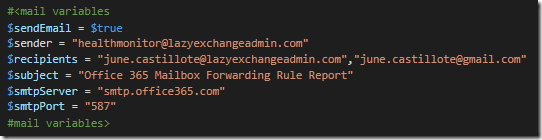
Email Settings


NOTE: The $sender value must be the actual email address of the service account or the shared mailbox used for sending the email report.
Paging

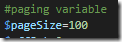
In cases where there are a large number of mailboxes to be processed, the Exchange Online PowerShell session may timeout/disconnect which would cause the script to fail. As a workaround, this script is configured to process the mailboxes in pages. By default, the page settings is set to 100 – which means after every 100 mailboxes processed, the script will re-establish and re-authenticate the PowerShell session. You can increase the page value but it is not recommended to set it too high.

Run the script

The script requires no parameters.


Output

CSV File
The csv file gets saved in the “\Reports” folder


Email

Share:

Monitoring Event IDs using PowerShell

I know that there are 3rd party commercial solutions that can monitor your servers for events IDs. But most of the time these solutions comes with features that you don’t really need and can cost some serious cash. Or maybe your company already have one in place but doesn’t always work as expected, and you could use a custom monitoring script as backup.

This script is for monitoring a list of events ids from local or remote computers. Can be configured to send the report by email or just write to an HTML output.

Download Link

https://github.com/junecastillote/PSEventMonitor

How to Use

Modify the CONFIG.XML file to confirm with your requirements

Modify the “application.txt” to contain the event IDs you need to monitor.

Then you can run the script, no parameters required because it reads the configuration from the XML file.

Sample Reports

HTML file

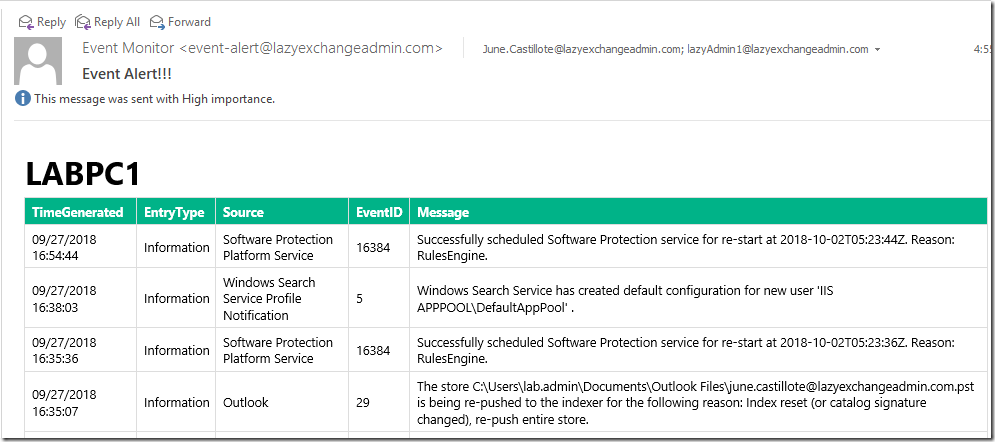
Email

Attribution:

This work is based on the script from this link.

Share:

Generate DNS MX Record Report using PowerShell

When you manage an email system, you’re sure to deal with MX records, and sometimes it is good to be able to generate a report of all the DNS MX Records for your domains to monitor their validity or availability. Being caught by surprise as your MX records go missing resulting in incoming mail delivery failures is never good.
This script can query a list of domains for their MX records, and generate a report which can be also sent as an email. Depending on your purpose, you can just run it manually or setup a task to run the script at an interval or daily schedule.

Requirements

This script requires PowerShell version 5.1

How to Install

From GitHub Repository

You can download the latest version of the script from this link, and just save it in you preferred folder.
https://github.com/junecastillote/Get-MXReport

From PS Gallery

This script can be installed from PSGallery by running this command:
Install-Script Get-MXReport –Scope AllUsers
Once completed, the script will be installed in “C:\Program Files\WindowsPowerShell\Scripts” by default, and is added to the PATH.

How to Use

Get-MXReport.ps1
[-domains] <string[]>
[-outputDirectory] <string>
[[-nameServer] <string>]
[[-logDirectory] <string>]
[[-headerPrefix] <string>]
[[-sendEmail] <string>]
[[-sender] <string>]
[[-recipients] <string[]>]
[[-smtpServer] <string>]
[[-smtpPort] <string>]
[[-smtpCredential] <pscredential>]
[-smtpServerRequiresAuthentication]
[-smtpSSL]
[-attachCSVReport]
[<CommonParameters>]

Examples

EXAMPLE 1

Get-MXReport.ps1 –domains “gmail.com”,”lazyexchangeadmin.com” –outputDirectory C:\Scripts\output
This example queries the MX record for the specified domains and save the HTML and CSV report to the specified folder

EXAMPLE 2

$domainsList = “gmail.com”,”yahoo.com”,”lazyexchangeadmin.com”
Get-MXReport.ps1 –domains $domainsList –outputDirectory C:\Scripts\outputsendEmail OnError –sender sender@domain.com –recipients recipient1@domain.com,recipient2@domain.com –smtpServer smtp.server.com –smtpPort 25 –AttachCSVReport
This example queries the MX records, save the reports to the specified folder and if a failed lookup is logged, it will send the email report to the specified recipient using a non-authenticated SMTP relay and the CSV report is attached to the email.

EXAMPLE 3

$domainsList = “gmail.com”,”yahoo.com”,”lazyexchangeadmin.com”
$smtpCredential = (Get-Credential)
Get-MXReport.ps1 –domains $domainsList –outputDirectory C:\Scripts\outputsendEmail OnError –sender sender@domain.com –recipients recipient1@domain.com,recipient2@domain.com –smtpServer smtp.office365.com –smtpPort 587 –smtpSSL –AttachCSVReport –smtpServerRequiresAuthentication –smtpCredential $smtpCredential
This example queries the MX records, save the reports to the specified folder and if a failed lookup is logged, it will send the email report to the specified recipient using an authenticated SMTP relay via Office 365, port 587 with SSL.


Required Parameters

-domains
  • Type: String (multiple, array)
  • Description: List of mail domains to query.
  • Example: “contoso.com”,”gmail.com”
-outputDirectory
  • Type: String (directory path)
  • Description: Path to where the reports will be saved.
  • Example: C:\scripts\report


Optional Parameters

-nameServer
  • Type: String
  • Description: Name or IP of the custom DNS Server to use for lookup. If not specified, script will use the local DNS Server IP of the machine.
  • Example: “8.8.8.8”
-logDirectory
  • Type: String
  • Description: Path to where the session transcript log should be saved. Logging will only work if this is specified.
  • Example: C:\scripts\log
-headerPrefix
  • Type: String
  • Description: String that will appear in front of the report title or email subject. Can be any string value.
  • Example: MyCompanyName
-sendEmail
  • Type: String
  • Valid values:
    • Always – Send email report everytime.
    • OnError – Send email report only when there’s a failed lookup result.
  • Description: If specified, the script will trigger sending of the report through email.
  • Example: –sendEmail Always, –sendEmail OnError
-sender
  • Type: String
  • Description: The email address that will appear as the sender of the email
  • Example: sender@domain.com
-recipients
-smtpServer
  • Type: String
  • Description: The IP address, Hostname, or Fully-Qualified Domain Name of the SMTP Relay Server. This parameter is required if -sendEmail is used.
  • Example: smtp.server.com
-smtpPort
  • Type: Integer
  • Description: The SMTP Port Number to be used along with the –smtpServer. This parameter is required if -sendEmail is used.
  • Example: 25
-smtpServerRequiresAuthentication
  • Type: Switch
  • Description: Use if the SMTP server requires authentication to be able to relay messages. There is no need to specify any value for this parameter.
-smtpCredential
  • Type: PSCredential
  • Description: The login credential for the SMTP server authentication. This parameter is required if -smtpServerRequiresAuthenticationis used.
  • Example: $smtpCredential = Get-Credential
-smtpSSL
  • Type: Switch
  • Description: Use this switch if the SMTP Relay connection requires SSL.


Sample Output

HTML Email Summary Report


CSV Report


Share:

Popular Posts

Powered by Blogger.