
Showing posts with label Exchange 2010. Show all posts
Showing posts with label Exchange 2010. Show all posts

Backup All Distribution Groups and Members using PowerShell

Someone in the group – either an admin or service desk, may commit a mistake at some point and delete a distribution group or empty out the members' list. When that happens usually the recovery action is to restore a backup of the active directory. This script can be used to create brick-level backup of distribution groups, so that they can be restored individually.
Download
https://github.com/junecastillote/Export-GroupsAndMembers
Variables
Modify the variables as needed

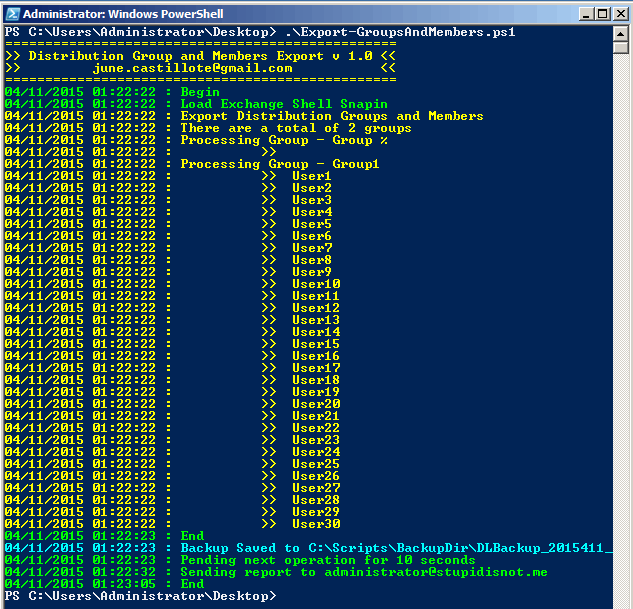
Sample Output
Running the script
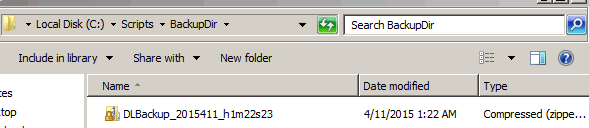
Backup File
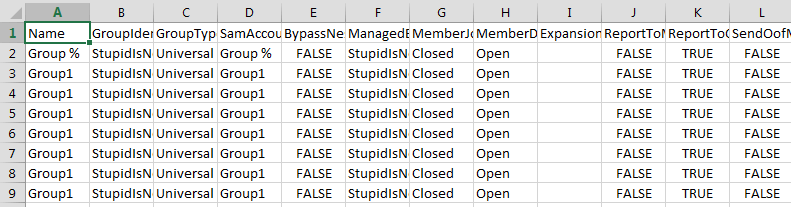
Sample Data
Exchange Server 2010/2013 Health Check PowerShell Script (v5.4)
A re-work of my previous ExDac utility for Exchange Server 2010 which was written in .NET
Now, this is written in PowerShell instead of VB.net, and as a result, the entire script runs for half the time than the previous tool.
What the script does?
The script performs several checks on your Exchange Servers like the ones below:- Server Health (Up Time, Server Roles Services, Mail flow,...)
- Mailbox Database Status (Mounted, Backup, Size, and Space, Mailbox Count, Paths,...)
- Public Folder Database Status (Mount, Backup, Size, and Space,...)
- Database Copy Status
- Database Replication Status
- Mail Queue
- Disk Space
- Server Components (for Exchange 2013/2016)
Then an HTML report will be generated and can be sent via email if enabled in the configuration file.
I have not tested this for Exchange 2016 but in theory, this should work just as well (let me know if it doesn't).
Sample Output


Parameters
- -configFile, to specify the XML file that contain the configuration for the script.
- -enableDebug, optional switch to start a transcript output to debugLog.txt
Configuration File
The configuration file is an XML file containing the options, thresholds, mail settings, exclusion that will be used by the script. The snapshot of the configuration file is seen below:

reportOptions
This section can be toggled by changing values with "true" or "false"- RunServerHealthReport - Run test and report the Server Health status
- RunMdbReport - Mailbox Database test and report
- RunComponentReport - Server Components check (Exchange 2013/2016)
- RunPdbReport - For checking the Public Folder database(s)
- RunDAGReplicationReport - Check and test replication status
- RunQueueReport - Inspect mail queue count
- RunDiskReport - Disk space report for each server
- RunDBCopyReport - Checking the status of the Database Copies
- SendReportViaEmail - Option to send the HTML report via email
- ReportFile - File path and name of the HTML Report
thresholds
This section defines at which levels the script will report a problem for each check item
- LastFullBackup - age of full backup in days. Setting this to zero (0) will cause the script to ignore this threshold
- LastIncrementalBackup - age of incremental backup in days. Setting this to zero (0) will cause the script to ignore this threshold.
- DiskSpaceFree - percent (%) of free disk space left
- MailQueueCount - Mail transport queue threshold
- CopyQueueLenght - CopyQueueLenght threshold for the DAG replication
- ReplayQueueLenght - ReplayQueueLenght threshold
- cpuUsage – CPU usage threshold %
- ramUsage – Memory usage threshold %
mailAndReportParameters
This section specifies the mail parameters- CompanyName - the name of the organization or company that you want to appear in the banner of the report
- MailSubject - Subject of the email report
- MailServer - The SMTP Relay server
- MailSender - Mail sender address
- MailTo - Recipient address. For multiple recipients, separate the addresses with a semi-colon (;)
exclusions
This section is where the exclusion can be defined.
- IgnoreServer - List of servers to be ignored by the script. Separate with a comma (,) with no spaces.
- IgnoreDatabase - List of Mailbox Database to be ignored by the script. Separate with a comma (,) with no spaces.
- IgnorePFDatabase - List of Public Folder Database to be ignored by the script. Separate with a comma (,) with no spaces.
How to Use
Run manually using Exchange Management Shell

[PS] C:\scripts>.\Get-ExchangeHealth.ps1 -configFile .\config.xml -enableDebug
Note: This must be run within the Exchange Management Shell session. Avoid using this inside the normal PowerShell session, with the Exchange 2010 PSSnapin loaded especially for Exchange 2013 servers.
Task Scheduler
Create a task in Task Scheduler with this action:
Program/script: powershell.exe
Add arguments: -Command ".'C:\Program Files\Microsoft\Exchange Server\V15\Bin\RemoteExchange.ps1'; Connect-ExchangeServer -auto; C:\scripts\Get-ExchangeHealth.ps1 -configFile C:\scripts\Get-\config.xml"
Download
You can find the latest script and config.xml file in this GitHub repository:
Change Logs
Version 5.4 (Latest)
- Added CPU and Memory Utilization Checks
- New configuration in config.xml (ramUsage, cpuUsage, RunCPUandMemoryReport)
- Code clean-up
Version 5.3 (skipped, crappy version)
Version 5.2 (Latest)
- Several code cleanups
- Renamed RunDAGCopyReport to RunDBCopyReport (because it makes more sense to call it that)
- Removed Add-PSSnapin code because it didn't play well with Exchange 2013. Hence the need to use Exchange Management Shell.
- Added the Version and Edition of Exchange Server column in Server Health report
- Revised the Get-MailQueues function
- Added AdminDisplayVersion identification in Get-ServerHealth function
- Removed PowerShell-Remoting code from the Mail flow test
- Renamed Get-DAGCopyStatus function to Get-DatabaseCopyStatus
- Added CopyQueueLenght threshold in XMLconfig file
- Added ReplayQueueLenght threshold in XMLconfig file
- Added Server Components check (for Exchange 2013)
- Added RunComponentReport option in XML config file
- Added
section in XML config file - Added IgnoreServer,IgnoreDatabase,IgnorePFDatabase fields in XML config file
- Added counter for the number of tests, passed and failed.
- Added percentage computation for overall health
- The "Issues" table is not visible from the report if there are no actual issues detected
- Added individual test results summary
- Added logic to not run DAG checks if there are no DAGs
- Added logic to not run Mail Flow test against Mailbox Servers with no Active Mailbox Database
Version 5.1
- Added new parameter "configFile" where you will need to specify the configuration XML file which contains the variables that used to be included inside the script in previous versions.
- Moved the Variables to an outside XML file (default is config.xml) You can create different XML files with different configurations/variables if desired.
- To run: "Get-ExchangeHealth.ps1 -configFile config.XML"
- Added DAG Copy Status
- Fixed the Math for getting back up age
Version 4.4b
- Corrected version information within the script
- Added BCC and CC line within the @params variable block, but are commented out.
- Added comments to:
- [int]$t_lastincrementalbackup
- [int]$t_lastfullbackup
- Added comments to:
- $MailCC
- $MailBCC
Version 4.4
- Added Test-MailFlow Handle for Exchange 2013
- Moved Test-MailFlow Result to Server Health Status Report
- Exclude Edge Servers from Testing
- Public Folder Database Report will not run if database count is 0
Version 4.3
- Renamed script to Get-ExchangeHealth.ps1
- Added Test-MapiConnectivity
- Added Test-MailFlow
- Added Services Status
- Added DNS/Ping Test
- Added Server Up Time
- Changed Backup Threshold from Days to Hours
Version 4.0
- Added DAG Members Replication Checks
- Added Mail Queue Checks
- Added DB Activation Preference Check
- Added "Summary" Section
- Fixed HTML character recognition issues
Older versions --- :)
Camera App/Function is missing after connecting mobile device to Exchange 2010 mailbox
If you connect an iPad, iPhone or any mobile device that supports Exchange ActiveSync to your Exchange 2010 account; you might find that the Camera app/function becomes missing. You're not alone :)
This is because the new Exchange server versions have device-specific restrictions available for ActiveSync. If the email administrator did not change the default Exchange ActiveSync policy, then this will be a familiar scenario.
I will not waste time trying to explain why this particular restriction is enabled with Exchange, let me just tell you how it can be enabled so that everyone can be happy.
After all that, recreate the Exchange Account setup in the mobile device to apply the new policy settings.
Good luck!
This is because the new Exchange server versions have device-specific restrictions available for ActiveSync. If the email administrator did not change the default Exchange ActiveSync policy, then this will be a familiar scenario.
I will not waste time trying to explain why this particular restriction is enabled with Exchange, let me just tell you how it can be enabled so that everyone can be happy.
- Open Exchange Management Console
- Go to "Organization Configuration > Client Access"
- Select the "Exchange ActiveSync Mailbox Policies" Tab
- Select the Policy you wish to edit, in this example it is the "Default".

- Select the "Device" tab and make sure that the "Allow Camera" box is checked.

- Go to the "General" tab and check the "Refresh Interval (hours)" box and put the value of 1.

- Click OK.
- Restart the "Microsoft Exchange RPC Client Access" service in each Client Access Server.
After all that, recreate the Exchange Account setup in the mobile device to apply the new policy settings.
Good luck!
Exchange Server Data Collector [DISCONTINUED]
Update [11/21/16]:
If you manage Exchange Servers, it is always good to have the ability to gather Exchange server status report on demand or by schedule depending on how frequent you want to be informed about the current state of your boxes. Sure you can always log in to your server and check the services, mount status, disk space, mail queues one by one; or you can use commercially available products for a fee. Well as for me, I do not like paying for anything that I can find a free alternative counterpart which can very much do the same thing.- This project has been discontinued.
- For Exchange 2010/2013, use the PowerShell version from this LINK
- Fixed TB size handling of disk space
- Other stuff that I can't remember anymore :)
- Added Performance Counter Object to extract Log Generation Checkpoint Depth of each storage groups.
- Added Reminders/Description after each section.
- These changes are only for Exchange 2003 (so far)
This is why I created this tool I call Exchange Data Collector, and for lack of imagination and creativity it's nick-named as ExDaC2003/ExDaC2010. This program can be run manually or can be set up as Scheduled Task and will gather the information listed below the create an HTML report. The report can be sent via email or you can create a new virtual directory in IIS and host it for online viewing.
The data collected by this small program are:
 |
| Mailbox Database |
 |
| Message Queues |
 |
| Services |
 |
| Disk Space |
How it works?
When you run this program, listed below are what basically happens.
For Exchange 2003
- Read INI file for configuration
- Log on to each specified Exchange Servers
- Extract Mailbox data using CDOEXM.dll
- Extract Mail Queue data using WMI
- Extract Services data using WMI
- Extract Disk data using WMI
- Save raw data to temporary file
- Read raw data and generate the HTML report
- Send HTML report via email (if enabled)
- Delete temporary files
- Cleanup memory allocation
- Read INI file for configuration
- Initiate a PowerShell runspace and execute PS Scripts for the following:
- Extract Mail Store Data
- Extract Mail Queue data
- Extract Services Data
- Extract Disk data
- Save raw data to temporary file
- Read raw data and generate the HTML report
- Send HTML report via email (if enabled)
- Delete temporary files
- Cleanup memory allocation
How do I use this?
This is a console application, meaning it's manipulated via command line (sorry no GUI).
Usage:
ExDaC2003.exe File.ini
ExDaC2010.exe File.ini
- ExDaC2003.exe/ExDaC2010.exe is the main executable
- File.ini is the configuration file that the programs reads before executing any of its functions. You can create different INI files with different configurations as you wish.
What does FILE.INI contain?
It contains the list of parameters that will be used for all the functions of the program.
Here's an example:
======================================================
[OPTIONS]
;Specify which data is to be reported (TRUE or FALSE)
xDatabase=True
xQueue=True
xService=True
xDisk=True
[OPTIONS]
;Specify which data is to be reported (TRUE or FALSE)
xDatabase=True
xQueue=True
xService=True
xDisk=True
[SERVERS]
;When specifying multiple values, seperate with semi-colon and must end with semi-colon
;This is the list of the servers that will be queried.
ServerName=DEVSVR01;DEVSVR02;
[SERVICES]
;When specifying multiple values, seperate with semi-colon and must end with semi-colon
;This is the list of services that will be queried for each of the servers listed under the SERVERS section
ServiceName=MSExchangeIS;MSExchangeMTA;MSExchangeSA;MSExchangeMGMT;MSExchangeES;Resvc;IISAdmin;POP3Svc;IMAP4Svc;W3SVC;SMTPSVC;
[SMTP]
;Specify only ONE SMTP server IP and PORT
SMTPServerIP=192.168.56.250
SMTPServerPort=25
;Populate this item if the SMTP server requires authentication, usually this is not the case.
;Accepted values are only TRUE or FALSE
AuthRequired=False
;If AuthRequired=True, you need to fill in this information for the login credentials.
;The format is DOMAIN;UserName;Password
Creds=
[REPORT]
CompanyName=LabWorks
Sender=administrator@labworks.local
;When specifying multiple recipient, separate with COMMA
Recipients=administrator@labworks.local,administrator2@labworks.local
;This is the Title that will be shown in the HTML report and also the Subject of the email report.
;The program will automatically append the DATE and TIME in this string
ReportTitle=LabWorks Exchange Server Status Report as of
;This item indicates if the program will send the report via email
;EmailReport= True or False
EmailReport=True
;This can be any value. This is needed so that the email report will be less likely to be considered as spam.
XMailer=Exchange Data Collector
;This will be the prefix of the HTML output file. The date and time will automatically be appended.
;The report will be saved here: \objects\reports
ReportFile=LabWorks_
;Specify here the value which will be considered normal for the mail queue, anything above the value specified here will be shown as critical.
QueueThreshold=25
;Specify here the value which will be considered normal for the disk space free percentage, anything above the value specified here will be shown as critical.
DiskThreshold=15
;How old (in days) the last full back up must be before warning - 0 means no checking
LastFullBackupThreshold=7
;How old (in days) will the last incremental backup must be before warning - 0 means no checking
LastIncrementalBackupThreshold=0
;Log file name number threshold before the log sequence should be restarted. anything above the value specified here will be shown as critical.
;Default value for warning as per Microsoft is 950000.
;Max before auto-dismount is 1030000
LogNumberThreshold=950000
;Log file name number threshold before the log sequence should be restarted. anything above the value specified here will be shown as critical.
;Max value before auto-dismount is 1008
LogDepthThreshold=900
;When specifying multiple values, seperate with semi-colon and must end with semi-colon
;This is the list of the servers that will be queried.
ServerName=DEVSVR01;DEVSVR02;
[SERVICES]
;When specifying multiple values, seperate with semi-colon and must end with semi-colon
;This is the list of services that will be queried for each of the servers listed under the SERVERS section
ServiceName=MSExchangeIS;MSExchangeMTA;MSExchangeSA;MSExchangeMGMT;MSExchangeES;Resvc;IISAdmin;POP3Svc;IMAP4Svc;W3SVC;SMTPSVC;
[SMTP]
;Specify only ONE SMTP server IP and PORT
SMTPServerIP=192.168.56.250
SMTPServerPort=25
;Populate this item if the SMTP server requires authentication, usually this is not the case.
;Accepted values are only TRUE or FALSE
AuthRequired=False
;If AuthRequired=True, you need to fill in this information for the login credentials.
;The format is DOMAIN;UserName;Password
Creds=
[REPORT]
CompanyName=LabWorks
Sender=administrator@labworks.local
;When specifying multiple recipient, separate with COMMA
Recipients=administrator@labworks.local,administrator2@labworks.local
;This is the Title that will be shown in the HTML report and also the Subject of the email report.
;The program will automatically append the DATE and TIME in this string
ReportTitle=LabWorks Exchange Server Status Report as of
;This item indicates if the program will send the report via email
;EmailReport= True or False
EmailReport=True
;This can be any value. This is needed so that the email report will be less likely to be considered as spam.
XMailer=Exchange Data Collector
;This will be the prefix of the HTML output file. The date and time will automatically be appended.
;The report will be saved here: \objects\reports
ReportFile=LabWorks_
;Specify here the value which will be considered normal for the mail queue, anything above the value specified here will be shown as critical.
QueueThreshold=25
;Specify here the value which will be considered normal for the disk space free percentage, anything above the value specified here will be shown as critical.
DiskThreshold=15
;How old (in days) the last full back up must be before warning - 0 means no checking
LastFullBackupThreshold=7
;How old (in days) will the last incremental backup must be before warning - 0 means no checking
LastIncrementalBackupThreshold=0
;Log file name number threshold before the log sequence should be restarted. anything above the value specified here will be shown as critical.
;Default value for warning as per Microsoft is 950000.
;Max before auto-dismount is 1030000
LogNumberThreshold=950000
;Log file name number threshold before the log sequence should be restarted. anything above the value specified here will be shown as critical.
;Max value before auto-dismount is 1008
LogDepthThreshold=900
======================================================
What does this program require?
The following must be present in the server/computer running this program.
For Exchange 2003
What does this program require?
The following must be present in the server/computer running this program.
For Exchange 2003
- .NET Framework 2.0
- Microsoft Exchange Management Tools
- .Net Framework 3.5
- Microsoft Exchange Management Tools
Where can I get this program?
Here:
Reminders
- As always, use with caution as I do not give any warranty or guarantee that this will work for everyone.


