Backup All Distribution Groups and Members using PowerShell

Someone in the group – either an admin or service desk,  may commit a mistake at some point and delete a distribution group or empty out the members' list. When that happens usually the recovery action is to restore a backup of the active directory. This script can be used to create brick-level backup of distribution groups, so that they can be restored individually.

Download

https://github.com/junecastillote/Export-GroupsAndMembers

Variables

Modify the variables as needed

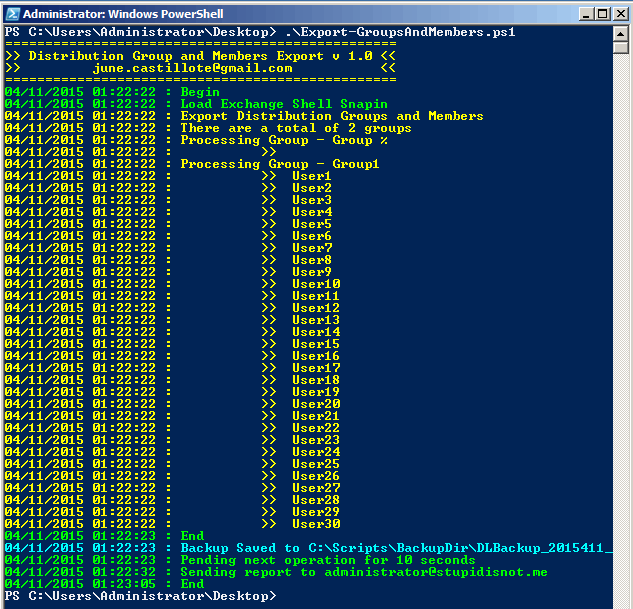
Sample Output

Running the script

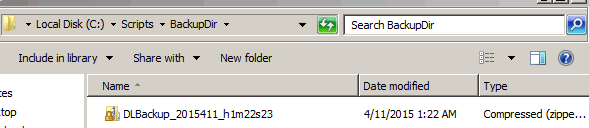
Backup File

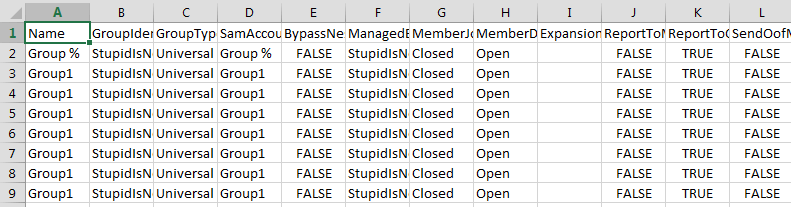
Sample Data

Share:

Exchange Server 2010/2013 Health Check PowerShell Script (v5.4)

A re-work of my previous ExDac utility for Exchange Server 2010 which was written in .NET

Now, this is written in PowerShell instead of VB.net, and as a result, the entire script runs for half the time than the previous tool.

What the script does?

The script performs several checks on your Exchange Servers like the ones below:
  • Server Health (Up Time, Server Roles Services, Mail flow,...)
  • Mailbox Database Status (Mounted, Backup, Size, and Space, Mailbox Count, Paths,...)
  • Public Folder Database Status (Mount, Backup, Size, and Space,...)
  • Database Copy Status
  • Database Replication Status
  • Mail Queue
  • Disk Space
  • Server Components (for Exchange 2013/2016)
Then an HTML report will be generated and can be sent via email if enabled in the configuration file.

I have not tested this for Exchange 2016 but in theory, this should work just as well (let me know if it doesn't).

Sample Output


Parameters

  • -configFile, to specify the XML file that contain the configuration for the script.
  • -enableDebug, optional switch to start a transcript output to debugLog.txt

Configuration File

The configuration file is an XML file containing the options, thresholds, mail settings, exclusion that will be used by the script. The snapshot of the configuration file is seen below:


reportOptions

This section can be toggled by changing values with "true" or "false"

  • RunServerHealthReport - Run test and report the Server Health status
  • RunMdbReport - Mailbox Database test and report
  • RunComponentReport - Server Components check (Exchange 2013/2016)
  • RunPdbReport - For checking the Public Folder database(s)
  • RunDAGReplicationReport - Check and test replication status
  • RunQueueReport - Inspect mail queue count
  • RunDiskReport - Disk space report for each server
  • RunDBCopyReport - Checking the status of the Database Copies
  • SendReportViaEmail - Option to send the HTML report via email
  • ReportFile - File path and name of the HTML Report

thresholds


This section defines at which levels the script will report a problem for each check item

  • LastFullBackup - age of full backup in days. Setting this to zero (0) will cause the script to ignore this threshold
  • LastIncrementalBackup - age of incremental backup in days. Setting this to zero (0) will cause the script to ignore this threshold.
  • DiskSpaceFree - percent (%) of free disk space left
  • MailQueueCount - Mail transport queue threshold
  • CopyQueueLenght - CopyQueueLenght threshold for the DAG replication
  • ReplayQueueLenght - ReplayQueueLenght threshold
  • cpuUsage – CPU usage threshold %
  • ramUsage – Memory usage threshold %


mailAndReportParameters

This section specifies the mail parameters
  • CompanyName - the name of the organization or company that you want to appear in the banner of the report
  • MailSubject - Subject of the email report
  • MailServer - The SMTP Relay server
  • MailSender - Mail sender address
  • MailTo - Recipient address. For multiple recipients, separate the addresses with a semi-colon (;)

exclusions

This section is where the exclusion can be defined.
  • IgnoreServer - List of servers to be ignored by the script. Separate with a comma (,) with no spaces.
  • IgnoreDatabase - List of Mailbox Database to be ignored by the script. Separate with a comma (,) with no spaces.
  • IgnorePFDatabase - List of Public Folder Database to be ignored by the script. Separate with a comma (,) with no spaces.

How to Use

Run manually using Exchange Management Shell


[PS] C:\scripts>.\Get-ExchangeHealth.ps1 -configFile .\config.xml -enableDebug

Note: This must be run within the Exchange Management Shell session. Avoid using this inside the normal PowerShell session, with the Exchange 2010 PSSnapin loaded especially for Exchange 2013 servers.

Task Scheduler

Create a task in Task Scheduler with this action:

Program/script: powershell.exe
Add arguments: -Command ".'C:\Program Files\Microsoft\Exchange Server\V15\Bin\RemoteExchange.ps1'; Connect-ExchangeServer -auto; C:\scripts\Get-ExchangeHealth.ps1 -configFile C:\scripts\Get-\config.xml"

Download

You can find the latest script and config.xml file in this GitHub repository:

Change Logs

Version 5.4 (Latest)

  • Added CPU and Memory Utilization Checks
    • New configuration in config.xml (ramUsage, cpuUsage, RunCPUandMemoryReport)
  • Code clean-up

Version 5.3 (skipped, crappy version)

Version 5.2 (Latest)

  • Several code cleanups
  • Renamed RunDAGCopyReport to RunDBCopyReport (because it makes more sense to call it that)
  • Removed Add-PSSnapin code because it didn't play well with Exchange 2013. Hence the need to use Exchange Management Shell.
  • Added the Version and Edition of Exchange Server column in Server Health report
  • Revised the Get-MailQueues function
  • Added AdminDisplayVersion identification in Get-ServerHealth function
  • Removed PowerShell-Remoting code from the Mail flow test
  • Renamed Get-DAGCopyStatus function to Get-DatabaseCopyStatus
  • Added CopyQueueLenght threshold in XMLconfig file
  • Added ReplayQueueLenght threshold in XMLconfig file
  • Added Server Components check (for Exchange 2013)
  • Added RunComponentReport option in XML config file
  • Added section in XML config file
  • Added IgnoreServer,IgnoreDatabase,IgnorePFDatabase fields in XML config file
  • Added counter for the number of tests, passed and failed.
  • Added percentage computation for overall health
  • The "Issues" table is not visible from the report if there are no actual issues detected
  • Added individual test results summary
  • Added logic to not run DAG checks if there are no DAGs
  • Added logic to not run Mail Flow test against Mailbox Servers with no Active Mailbox Database

Version 5.1

  • Added new parameter "configFile" where you will need to specify the configuration XML file which contains the variables that used to be included inside the script in previous versions.
  • Moved the Variables to an outside XML file (default is config.xml) You can create different XML files with different configurations/variables if desired.
  • To run: "Get-ExchangeHealth.ps1 -configFile config.XML"
  • Added DAG Copy Status
  • Fixed the Math for getting back up age

Version 4.4b

  • Corrected version information within the script
  • Added BCC and CC line within the @params variable block, but are commented out.
  • Added comments to:
  • [int]$t_lastincrementalbackup
  • [int]$t_lastfullbackup
  • Added comments to:
  • $MailCC
  • $MailBCC

Version 4.4

  • Added Test-MailFlow Handle for Exchange 2013
  • Moved Test-MailFlow Result to Server Health Status Report
  • Exclude Edge Servers from Testing
  • Public Folder Database Report will not run if database count is 0

Version 4.3

  • Renamed script to Get-ExchangeHealth.ps1
  • Added Test-MapiConnectivity
  • Added Test-MailFlow
  • Added Services Status
  • Added DNS/Ping Test
  • Added Server Up Time
  • Changed Backup Threshold from Days to Hours

Version 4.0

  • Added DAG Members Replication Checks
  • Added Mail Queue Checks
  • Added DB Activation Preference Check
  • Added "Summary" Section
  • Fixed HTML character recognition issues

Older versions --- :)

Share:

Exchange Information Store Backup with Cleanup and Email Report

  1. What is MSExchangeISBackup.exe Tool?
This is a customizable program for Exchange Information Store backup purposes.
The tool is only suitable for backup to file operation. (For Exchange 2003)

This program, when executed, calls the native backup capability of the NTBackup utility in Windows to execute a backup task for the Exchange Server Information Store. Additionally, after the backup task is complete, it reads the logs to determine whether the backup was successful or not. Then it performs a purge operation of older backup file based on the retention days specified in the configuration file. A report is also sent to the intended recipients via email. These features eliminate the need to check for completion or successful backup manually; and take care of housekeeping of old backup files based on retention value.

This can also be set as Scheduled Task to run daily or whenever is required.

  1. What are the system requirements?
·         .Net Framework 2.0
·         Windows 2003
·         Exchange 2003

  1. What are the required user permissions?
·         Access to the location/drive/path where the backup files will be saved.
·         The tool is expected to be handled, used and configured by the Administrators.

  1. Where can I get the program?

  1. Installation/Configuration

·         Download and Extract the zip to any folder. In this example, it is saved in C:\MSExchangeISBackup\


·         Create the Backup Selection File using NTBackup.exe
o    Click Start > Run > NTBackup.exe
o    Select the Server and Information Store for backup.


o     Click Job > Save Selection As


o    Save the BKS file. In this example, it is saved in C:\MSExchangeISBackup\DevSvr01-IS.bks


o    Modify the INI file. In this example, we are configuring the config.ini file.

[OPTIONS]

;the path for NTBACKUP.exe
NTBUPathName=C:\Windows\System32\ntbackup.exe

;the folder where the Backup Selection is located. (*.BKS)
BKSDir=C:\MSEXchangeISBackup\

;the filename of the backup selection file
BKSFile=DevSvr01-IS.bks

;the path where the backup file will be saved (*.BKF)
;this coud be a local drive or a network location.
;TAPE is not supported.. yet.
BKFDir=C:\Backup\

;Prefix for the backup filename.
BKFPrefix=DevSvr01_

;File extension for the output backup file. There is usually no need to change this.
BKFExtension=bkf

;How many days to keep the copy of the backup file in the BKFDir location before it is purged.
;Make sure that a MINUS sign comes before the number (eg. -14 for 14 days retention)
KeepDays=-5

;Indicate if backups older than the KeepDays value is purged/deleted. (TRUE or FALSE)
PurgeOld=TRUE

;Indicate if the report is to be sent via email. (TRUE or FALSE)
SendReport=TRUE

;IP or Resolvable name of the SMTP server where the email report will be relayed for delivery.
SMTPServer=192.168.56.250

;SMTP port. Usually 25.
Port=25

;Sender address to reflect as the sender of the report.
Sender=DevSvr01_Backup@labworks.local

;Recipient addresses of the email report. Seperate multiple addresses with COMMA.
Recipient=administrator@labworks.local


  1. Run the program to Backup Exchange Information Store
·         Open Command Prompt and change the path to where the tool is saved. In this example it is in C:\MSExchangeISBackup


·         Issue the command in this format “MSExchangeISBackup.exe [INI File]” .
·         In this example, it is MSExchangeISBackup.exe Config.ini


·         NTBackup.exe will run in the background.
·         The output will be written in the command console.


·         It checks if backup was successful.
·         It will delete older backups based on the retention days specifies in the INI file.
·         The report will be sent via email if it is enabled in the INI.


Share:

Extract List of User Mailbox Data using vbScript

If you need to export a list of user mailboxes (because your boss is making you or you simply have nothing better to do), it is quite an easy task if you have Exchange 2007 and up because of PowerShell snapins.

You can just fire up PowerShell and import the Exchange 2010 Module.

Add-PSSnapin Microsoft.Exchange.Management.PowerShell.E2010

Then:

Get-Mailbox -ResultSize Unlimited | Get-MailboxStatistics | select-object Database, DisplayName, TotalItemSize, TotalDeletedItemSize | Sort-Object Database

Or you can export to CSV like so:

Get-Mailbox -ResultSize Unlimited | Get-MailboxStatistics | select-object Database, DisplayName, TotalItemSize, TotalDeletedItemSize | Sort-Object Database | Export-Csv .\Mailboxes.CSV -NoTypeInformation

But what if you're still in survival mode with Exchange 2003?

You can use this script should you need to extract the list of user mailboxes from one or more Exchange 2003 servers. 

This script will cough-out the following Fields.


  • ServerName
  • StorageGroupName
  • StoreName
  • MailboxGUID
  • MailboxDisplayName
  • LegacyDN
  • Size
  • TotalItems
  • AssocContentCount
  • DeletedMessageSizeExtended
  • StorageLimitInfo
  • LastLoggedOnUserAccount
  • LastLogOnTime
  • LastLogOffTime
  • DateDiscoveredAbsentAbsentDaysInDS
This script reads the list of servers to be queried from a file called ServerList.ini.
Be sure to create this file and populate it with the server names before running this script. 

It runs in this order:

1. Read list of server from ServerList.ini
2. Query each servers and extract information
3. Save information to "ExchangeMBX.txt"

'==========================================================================
'
' NAME: ExtractMBXInfo.vbs
'
' AUTHOR: june.castillote@gmail.com
' DATE  : 10/01/2011
'
' COMMENT: This is for extracting the list of mailboxes from specified servers in the "serverlist.ini" file.
' FILES : 1. ExtractMBXInfo.vbs - main script
'          2. ServerList.ini - file containing the list of servers for the query.
' USAGE  : cscript ExtractMBXInfo.vbs
'==========================================================================

Option Explicit

On Error Resume Next

Dim t1, t2, t3, d1, d2, d3

Dim strComputer

'==========================================================================

Dim FileToWrite, FileToRead, fsoWrite, fsoRead

Set fsoWrite = CreateObject("Scripting.FileSystemObject")
Set fsoRead = CreateObject("Scripting.FileSystemObject")

Set FileToWrite = fsoWrite.CreateTextFile("ExchangeMBX.txt")
Set FileToRead = fsoRead.OpenTextFile("ServerList.ini")

Dim objWMIService
Dim colItems
Dim objItem
Dim i

'Header row
FileToWrite.WriteLine "Server" & vbTab & "Storage Group" & vbTab & "Mail Store" & vbTab & "Mailbox GUID" & vbTab & "Display Name" & vbTab & "LegacyDN" & vbTab & "Size" & vbTab & "Item Count" & vbTab & "Associated Content Count" & vbTab & "Deleted Message Size" & vbTab & "Date Absent" & vbTab & "Storage Limit Level" & vbtab & "Last LogOn Account" & vbtab & "Last LogOn Time" & vbTab & "Last LogOff Time"

'Iterate through the list of servers
Do While Not FileToRead.AtEndOfStream
     strComputer = FileToRead.ReadLine()
     WScript.Echo Now & " : Connecting to " & strComputer
     Set objWMIService = GetObject("winmgmts:" _
        & "{impersonationLevel=impersonate}!\\" & strComputer & _
            "\ROOT\MicrosoftExchangeV2")
   
    WScript.Echo Now & " : Running Query on " & strComputer
    Set colItems = objWMIService.ExecQuery _
    ("Select * from Exchange_Mailbox")
   
    For Each objItem in colItems
        If objItem.LastLogOnTime <> "" Then
            t1=WMIDateStringToDate(objItem.LastLogonTime)
        Else
            t1 = ""
        End If
       
        If objItem.LastLogOffTime <> "" Then
            t2=WMIDateStringToDate(objItem.LastLogOffTime)
        Else
            t2 = ""
        End If
       
        If objItem.DateDiscoveredAbsentAbsentDaysInDS <> "" Then
            t3=WMIDateStringToDate(objItem.DateDiscoveredAbsentInDS)
        Else
            t3=""
        End If           
       
        FileToWrite.WriteLine objItem.ServerName & vbTab & objItem.StorageGroupName & vbTab & objItem.StoreName  & vbTab & objItem.MailboxGUID & vbTab & objItem.MailboxDisplayName & vbTab & objItem.LegacyDN & vbTab & objItem.Size & vbTab & objItem.TotalItems & vbTab & objItem.AssocContentCount & vbTab & objItem.DeletedMessageSizeExtended & vbTab & t3 & vbTab & objItem.StorageLimitInfo & vbTab & objItem.LastLoggedOnUserAccount & vbTab & t1 & vbTab & t2
    Next
Loop
WScript.Echo Now & " : End - Saved to ExchangeMBX.txt"

'To convert WMI time to Standard time format
Function WMIDateStringToDate(dtmInstallDate)
    WMIDateStringToDate = CDate(Mid(dtmInstallDate, 5, 2) & "/" & _
    Mid(dtmInstallDate, 7, 2) & "/" & Left(dtmInstallDate, 4) _
    & " " & Mid (dtmInstallDate, 9, 2) & ":" & _
    Mid(dtmInstallDate, 11, 2) & ":" & Mid(dtmInstallDate, _
    13, 2))
End Function

FileToRead.Close
FileToWrite.Close
Set FileToRead = Nothing
Set FileToWrite = Nothing


Share:

List All Users LDAP Query with Attributes

If you need to extract a list of users from the Active Directory, with customizable list of attributes, here's one for you.

'==========================================================================
' NAME: ListAllusers.vbs
'
' AUTHOR: june.castillote@gmail.com
' DATE  : 03/18/2011
'
' COMMENT: This is for extracting the list of users with their attribute values.
'        Once you run the script, it will output the result to UserList-Extended.txt in TAB-delimited format.
' USAGE  : ListAllusers.vbs
'==========================================================================

 
On Error Resume Next
Dim FileToWrite, fsoWrite
Set fsoWrite = CreateObject("Scripting.FileSystemObject")
Set FileToWrite = fsoWrite.CreateTextFile("UserList-Extended.txt")

Dim objConnection, objQuery, objRootDSE, strDomain
Dim strFilter, strQuery, objRecordSet, gt
Set objConnection = CreateObject("ADODB.Connection")
Set objQuery = CreateObject("ADODB.Command")
objConnection.Provider = "ADsDSOOBject"
objConnection.Open "Active Directory Provider"
Set objQuery.ActiveConnection = objConnection
Set objRootDSE = GetObject("LDAP://RootDSE")

'Retrieve the domain
strDomain = objRootDSE.Get("defaultNamingContext")
strBase = ""

'To filter results only to user objects
strFilter = "(&(objectCategory=user))"

'Populate the required attributes.
'You can find the list of available attributes here: http://www.kouti.com/tables/userattributes.htm

strAttributes = "distinguishedName,Name"


'Query String
strQuery = strBase & ";" & strFilter & ";" & strAttributes & ";subtree"
objQuery.CommandText = strQuery
objQuery.Properties("Page Size") = 99999
objQuery.Properties("Timeout") = 300
objQuery.Properties("Cache Results") = False

FileToWrite.WriteLine "Name" & vbTab & "DN"
Set objRecordSet = objQuery.Execute
objRecordSet.MoveFirst
Do Until objRecordSet.EOF
    FileToWrite.WriteLine objRecordSet.Fields("Name") & vbTab &objRecordSet.Fields("distinguishedName")
    Wscript.Echo  objRecordSet.Fields("Name") & vbTab &objRecordSet.Fields("distinguishedName")
    objRecordSet.MoveNext
Loop

' Clean up
objConnection.Close
FileToWrite.Close
Set objConnection = Nothing
Set objQuery = Nothing
Set objRootDSE = Nothing
Set objRecordSet = Nothing
Set fsoWrite = Nothing
Set FileToWrite = Nothing
Share:

Domino Server Data Collector [DISCONTINUED]


NOTE: This project has been discontinued and there are no longer any plans to update this.

Similar to my Exchange Server Data Collector, this one is designed for Domino Server instead.

I made this with .NET, with Lotus Notes COM component.
If you'd ask why didn't I just make this in LotusScript as an agent, well here are my answers.

  • I hate LotusScript
  • I hate Domino
  • I hate Lotus Notes
  • If Domino is acting up, the Agent may not work
  • If Domino is acting up, the email report or error notification may not be sent.

Those are why I created this independent from any Domino components (or DDM).


What does this do?


This utility collects the following information:


  • Queue information like Pending, Hold, Dead mail status in each of routing mailboxes.
  • Disk space information of the server.
  • Number of mailbox with statistics for Over quota, Warning and Normal. 


There are two programs in this project:

  • Dominator.exe - The main executable that collects information from the domino server.
  • SecureStrings.exe - Tool to encrypt the Notes.ID password that will be in the configuration file of the main executable.


How does this work?


  • Read contents of "config.ini"
  • Connect to the specified server
  • Login to Domino Server using the ID specified in Notes.INI
  • Extract Queue information
  • Extract Disk space information
  • Extract Mailbox information
  • Generate report
  • Send HTML report via email if enabled


What do I need to use this?


  • A computer with Lotus Notes installed and configured with the user ID that have proper access to the Domino Server.
  • .NET Framework 2.0 installed
  • The program: http://sdrv.ms/Y3w9SI
  • You know how to use the Command Prompt

How do I use this?


  • Configure your Lotus Notes client PC. This utility will use the "last used" Notes.ID in the notes.ini file to connect to the Domino Server.
  • Download the program package here and save/extract to whichever folder you choose. http://sdrv.ms/Y3w9SI
  • Modify the CONFIG.INI to input the correct values.
  • Run the SecureStrings.exe program to encrypt the Notes.ID password that you will put in the CONFIG.INI
 

  • Run DOMINATOR.exe


What's in the CONFIG.INI?

===========================================
[OPTIONS]
;This is the DOMINO server
DSvrName=DOM01/LabWorks

;This is the HOSTNAME

WSvrName=DOM01

;Indicate here the number of routing mailboxes
NumMailBox=1

;Here you put the encrypted password for the NOTES.ID (use the securestrings.exe tool to encryt)
NotesPassword=FZ+/8l+pS2n2bX3eszbrgA==


[SMTP]
;Specify only ONE SMTP server IP and PORT
SMTPServerIP=127.0.0.1
SMTPServerPort=25

;Populate this item if the SMTP server requires authentication, usually this is not the case.
;Accepted values are only TRUE or FALSE

AuthRequired=False

;If AuthRequired=True, you need to fill in this information for the login credentials.
;The format is DOMAIN;UserName;Password

Creds=

[REPORT]

;The company name to appear in the report
CompanyName=LabWorks

;Sender="Display Name"
Sender="DOM01 Mailer"

;When specifying multiple recipient, seperate with commad eg: someone@hp.com,nobody@hp.com
Recipients=

;This is the Title that will be shown in the HTML report and also the Subject of the email report.
;The program will automatically append the DATE and TIME in this string
ReportTitle=DOM01 Status Report as of

;This item indicates if the program will send the report via email
;EmailReport= True or False

EmailReport=False

;This can be any value. This is needed so that the email report will be less likely to be considered as spam.
XMailer=Dominator by june.castillote@gmail.com

;This will be the prefix of the HTML output file. The date and time will automatically be appended.
ReportFile=LabWorks_

;The value which will be considered normal for the mail queue, anything above the value specified here will be shown as critical.
QueueThreshold=100

;The value which will be considered normal for the disk space free percentage, anything above the value specified here will be shown as critical.
DiskThreshold=15 


Download Link

Dominator 1.0


Share:

Popular Posts

Powered by Blogger.